
Download Winston – Retro Typewriter Simulator for Windows, Mac, Android & iOS
Overview
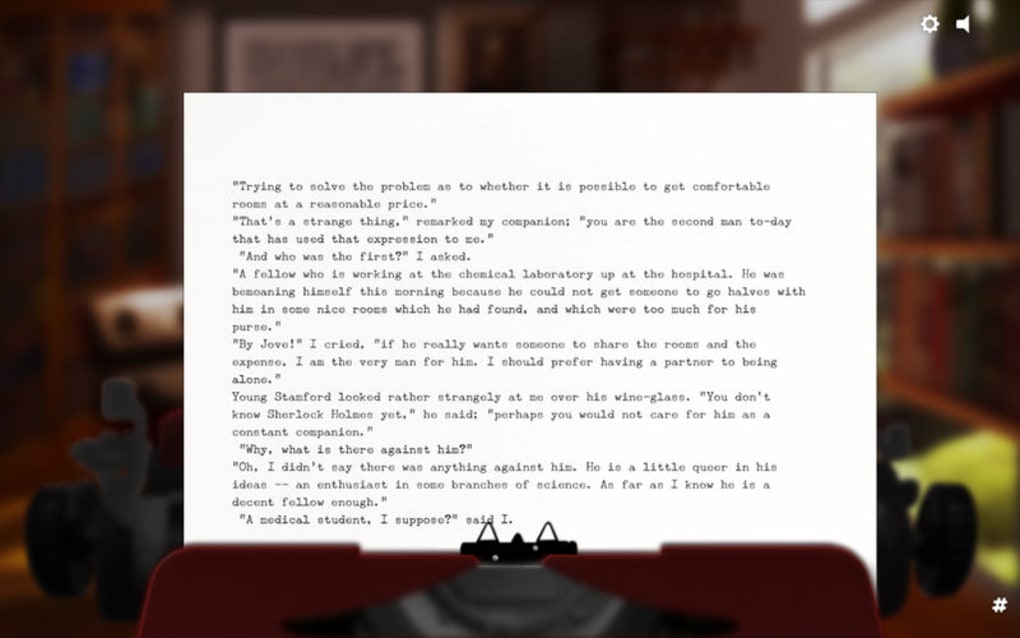
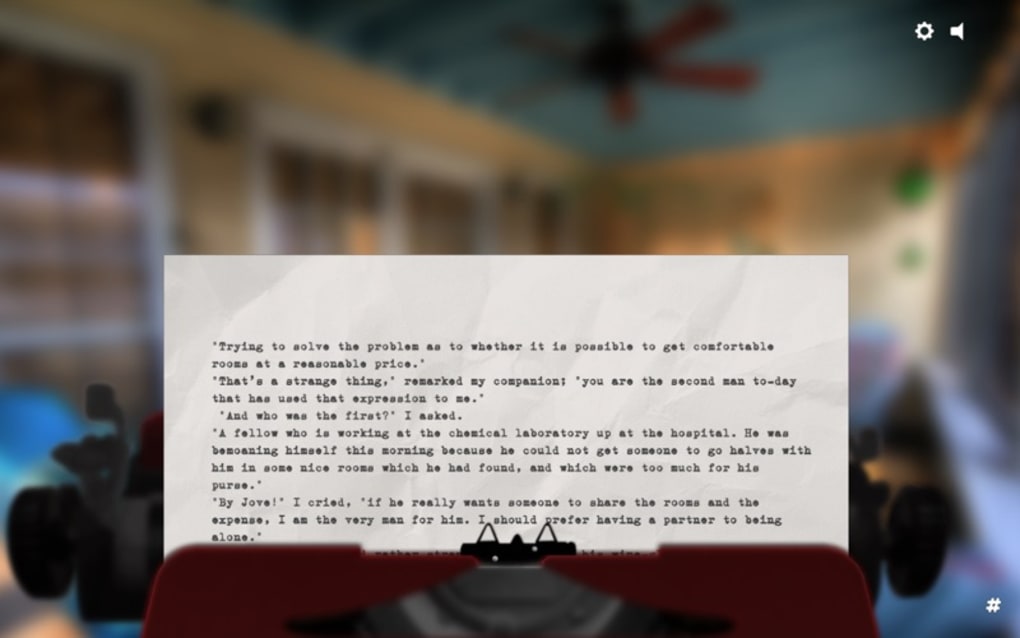
Winston is a lovingly crafted typewriter simulator that transports you back to the tactile charm of the 1970s while keeping the convenience of modern software. Instead of offering a typical word‑processor with endless undo options, Winston forces you to embrace the rhythm of a real mechanical typewriter. Each keystroke produces an authentic click, carriage‑return clack, and paper‑feed animation that makes you feel as though you’re sitting at a vintage desk.
The core philosophy behind Winston is simple: write first, edit later. By actively preventing the user from correcting typos on the fly, the app encourages a more thoughtful drafting process, reminiscent of drafting a document on a physical typewriter where a mistake meant a new sheet of paper. While the auto‑wrapping feature occasionally requires a quick restart, the overall experience is surprisingly smooth and immersive.
Winston is free to download, runs on all major platforms, and receives regular updates that polish sound effects and add subtle visual tweaks. Whether you’re a novelist seeking a distraction‑free environment, a student looking for a novelty writing tool, or simply a retro enthusiast, Winston delivers a unique blend of nostalgia and productivity. Its minimalist interface removes the temptation to constantly tweak formatting, letting ideas flow uninterrupted.
In short, Winston is more than a novelty—it’s a purposeful writing instrument that re‑imagines how we interact with text in a world dominated by endless back‑spacing.
Key Features
- Authentic Typewriter Sounds: Every key press generates a high‑fidelity click, carriage return, and bell sound that mimics a real 70s typewriter.
- Dynamic Paper Animation: Visual feedback includes paper feed, line‑by‑line scrolling, and realistic ink smudges.
- No‑Undo Editing Model: The app disables backspace for typo correction, encouraging users to write continuously and edit later.
- Cross‑Platform Support: Available on Windows, macOS, Android, and iOS, with synchronized cloud saving for seamless switching.
- Simple, Distraction‑Free UI: A clean black‑and‑white canvas that removes toolbars, menus, and pop‑ups.
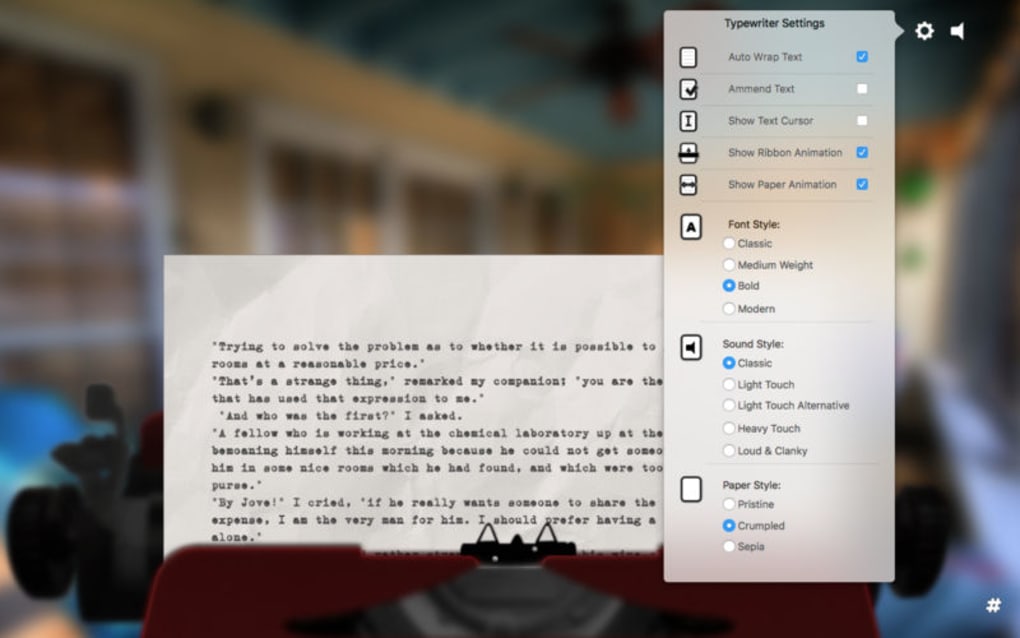
- Auto‑Wrap Toggle: Adjustable line‑wrap settings (including an experimental “hard‑wrap” mode) for users who prefer strict column limits.
- Export Options: Export typed pages as plain‑text, PDF, or image files that preserve the typewriter aesthetic.
- Regular Free Updates: The development team releases bug‑fixes, new sound packs, and minor UI refinements at no cost.
Installation & Usage Guide
Getting Winston up and running is straightforward, regardless of your operating system. Follow the steps below for a smooth installation and start typing like it’s 1975.
Windows & macOS
- Visit the official Winston website or the Microsoft Store / Mac App Store.
- Click the “Download” button – the installer file (
.exefor Windows,.dmgfor macOS) will begin downloading. - Run the installer and follow the on‑screen prompts. You may need to grant permission for the app to access your Documents folder for saving files.
- Once installation completes, launch Winston from the Start menu (Windows) or the Applications folder (macOS).
- The first launch will present a brief tutorial overlay explaining the no‑undo principle and how to use the carriage‑return key.
Android & iOS
- Open Google Play Store (Android) or App Store (iOS) on your device.
- Search for “Winston Typewriter Simulator” and tap the “Install” button.
- After installation, tap the app icon to open Winston.
- Grant permission to access local storage if prompted; this is required for exporting documents.
- A quick onboarding screen will guide you through the basic controls, including how to restart the app to reset auto‑wrap.
Using Winston Effectively
When you start a new document, the screen displays a blank sheet of virtual paper. Type normally; each keystroke produces the classic click sound and advances the carriage. To start a new line, press Enter – the carriage will return with a satisfying “ding”.
Remember, the backspace key is disabled; if you make a mistake, you can either let the error stay (embracing the authentic feel) or use the “Reset” button in the top‑right corner to clear the page and begin again. For longer projects, take advantage of the “Save Draft” feature, which stores your work in the cloud without altering the on‑screen experience. When you’re ready to finalize, use the Export menu to generate a PDF that preserves the typewriter aesthetic, complete with simulated ink blotches and margins.
Updating Winston is as simple as visiting your app store; updates are automatically downloaded and installed, ensuring you always have the latest sound packs and performance improvements.
Compatibility, Pros & Cons
Supported Operating Systems: Windows 10/11, macOS 10.15+ (Catalina and later), Android 6.0+ (API 23), iOS 13+.
Pros
- Immersive retro experience with authentic sound and animation.
- Distraction‑free interface that keeps you focused on writing.
- Free to download with no hidden subscription fees.
- Cross‑platform synchronization for seamless workflow.
- Export options preserve the nostalgic look of typed pages.
- Regular updates improve stability and add new sound packs.
Cons
- No built‑in spell‑check or auto‑correction, which may frustrate some users.
- Auto‑wrap feature can become unresponsive, requiring a quick restart.
- Lack of advanced formatting tools (bold, italics, headings).
- Only plain‑text editing; no support for rich‑text documents.
- Limited customization of sound profiles beyond the default set.
Frequently Asked Questions
Is Winston completely free or does it have in‑app purchases?
Winston is free to download and use on all platforms. There are no mandatory in‑app purchases. Optional sound‑pack bundles may be offered, but they are entirely optional and do not affect core functionality.
Can I export my documents in a format that keeps the typewriter look?
Yes. Winston provides export options for plain‑text, PDF, and image files. The PDF and image exports retain the simulated paper texture, carriage‑return lines, and sound‑triggered ink smudges, giving you a genuine vintage appearance.
How does the auto‑wrap issue affect my writing?
The auto‑wrap feature occasionally fails to trigger after a long typing session, causing text to continue off the visible page. The workaround is to use the “Restart” button in the toolbar, which reinitializes the wrap logic without losing your saved draft.
Does Winston support cloud syncing across devices?
Yes. When you create an account, Winston syncs your drafts to a secure cloud server. This allows you to continue a document on any supported device, preserving the exact layout and typewriter effects.
Is there a way to enable backspace for editing?
Winston’s core design intentionally disables backspace to promote a “write‑first, edit‑later” workflow. However, a hidden “Edit Mode” can be unlocked from the Settings menu for users who need occasional corrections. This mode disables the no‑undo restriction but removes the nostalgic experience.
Final Verdict & Call to Action
Winston succeeds where most modern writing apps fail: it forces you to think before you type, turning the act of writing into a deliberate, almost meditative ritual. The immersive soundscape and paper‑feed animation make each session feel like you’re actually sitting at a vintage desk, while the free‑to‑use model removes any barrier to entry. Although the lack of conventional editing tools and occasional auto‑wrap hiccup can be frustrating, these drawbacks are outweighed by the unique experience and the app’s commitment to authenticity. If you’re searching for a distraction‑free environment that inspires creativity through constraints, Winston is the perfect companion. Download Winston today, let the clicks guide your thoughts, and rediscover the joy of typing without the safety net of endless undo.
Click here to download Winston for free and start typing like it’s the 1970s—modern updates included.







